Sampler tool
Use the Sampler tool to reuse and link materials across multiple objects or use colors directly from your scene to change the look of materials you've already created.
| Name | Description | Shortcut |
|---|---|---|
| Sampler tool | Sample and apply materials and colors to objects. | I |
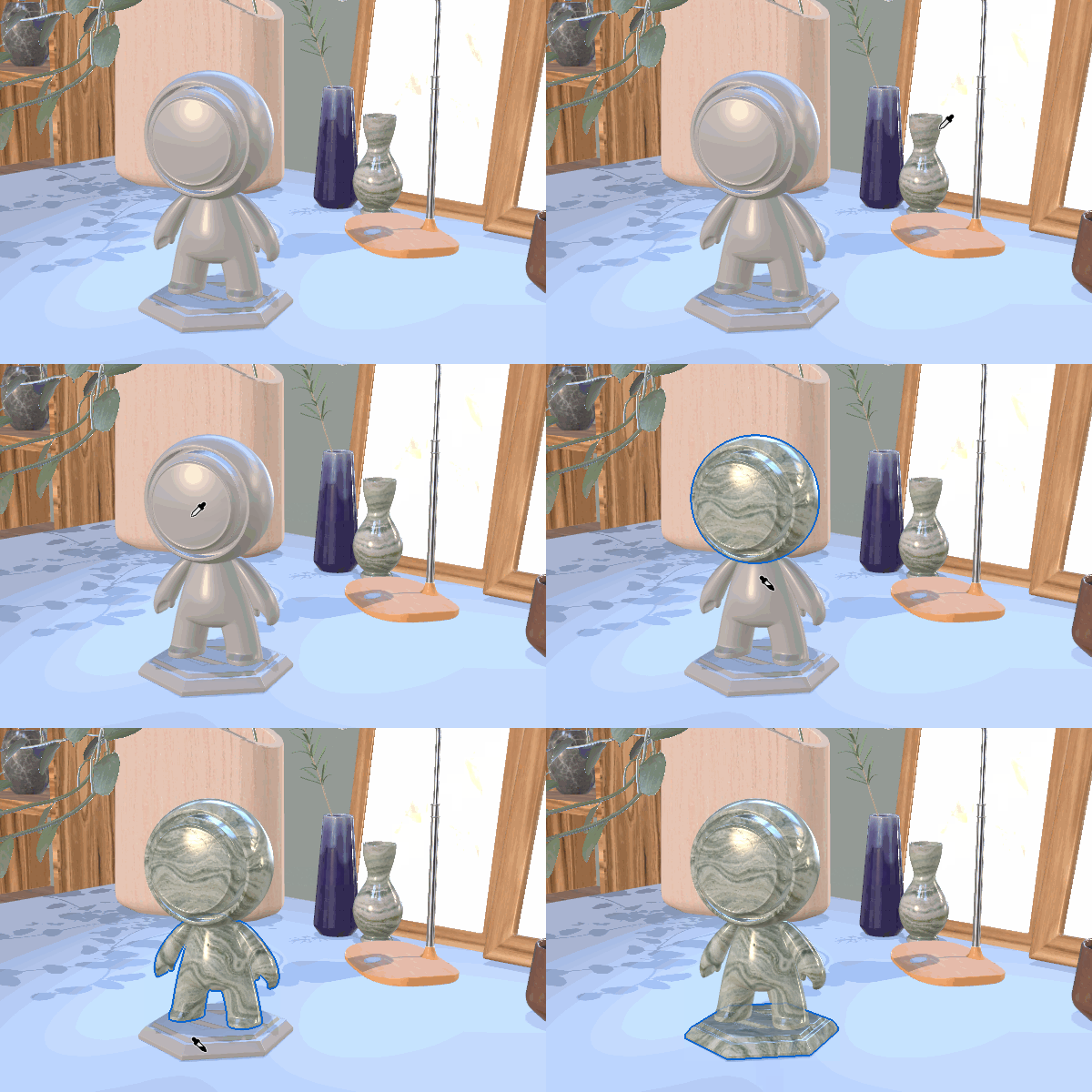
To use the Sampler tool
- Switch to the sampler tool on the toolbar.
- Click in the viewport to sample content. The sampled content will appear in the toolbar.
- Hold shift and click in the viewport to apply the sampled content to new objects.
Tool options
Sample type
Determines what type of content to sample.
Material: Samples materials from the viewport. Includes material settings and textures.
Screen color: Samples the color of the viewport display pixels. Includes lighting, shadow, and reflection information.
Mode
Default shortcut: Shift
Determines whether to sample content or apply previously sampled content.
Sample: Samples the content type from the object beneath the cursor.
Apply: Applies the active content type to the object beneath the cursor.
Design stunning 3D visuals with Dimension
Create photorealistic 3D images for product mockups, branded content, and more.
