
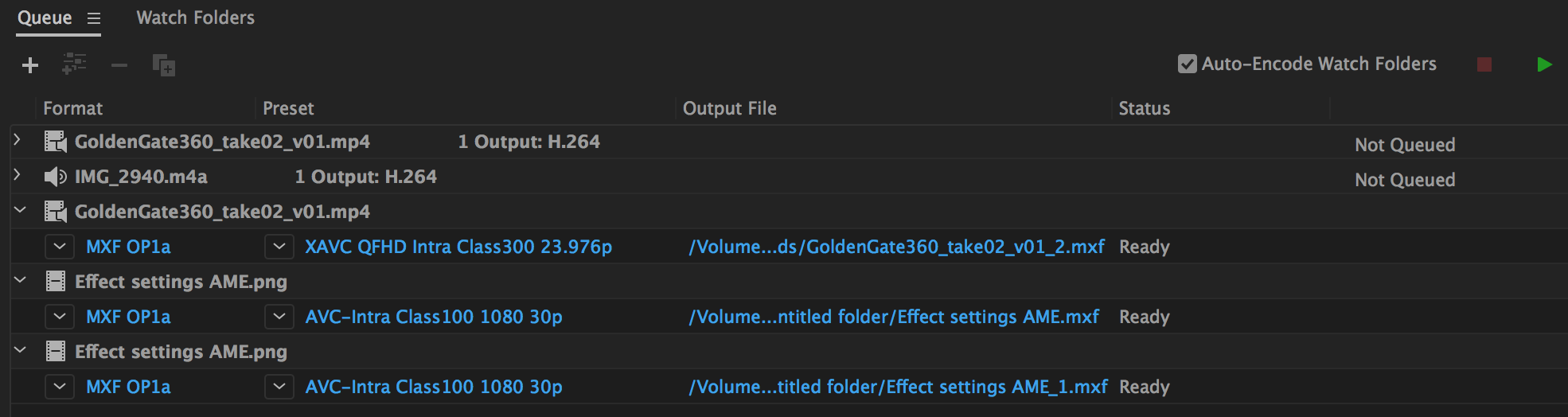
Import the media files and queue them in the Queue panel.
上次更新時間
2022年1月12日
- Adobe Media Encoder User Guide
- Beta releases
- Introduction
- Encoding quick start and basics
- Overview of Adobe Media Encoder
- Media Intelligence in Media Encoder
- Using the Preset Browser
- Source Settings
- File formats supported for import with Media Encoder
- Managing third-party audio plug-ins
- Export media from Team Projects using Media Encoder
- Working with log files
- Files supported for export with Media Encoder
- Default keyboard shortcuts
- About video and audio encoding and compression
- Compression tips
- Set preferences
- Reset and restore preferences
- Keyboard shortcuts
- Encoding and exporting
- Create custom presets for Media Encoder
- Using the GoPro CineForm codec in After Effects
- Match audio channelization in Media Encoder
- Apply automatic loudness correction
- Video Effects Manager in Media Encoder
- Apply Content Credentials preferences at export
- Export settings reference for Media Encoder
- Apply Content Credentials preferences at export
- Encode and export video and audio with Media Encoder
- Managing the media cache database
- Publish settings in Media Encoder
Overview
In Media Encoder CC, you can ensure that your video and audio projects meet broadcast standards for loudness. You can also apply adjustments to the standards, configure True Peak Limits, and view a report of the loudness values.
Applying loudness correction
-

Queue panel
Queue panel -
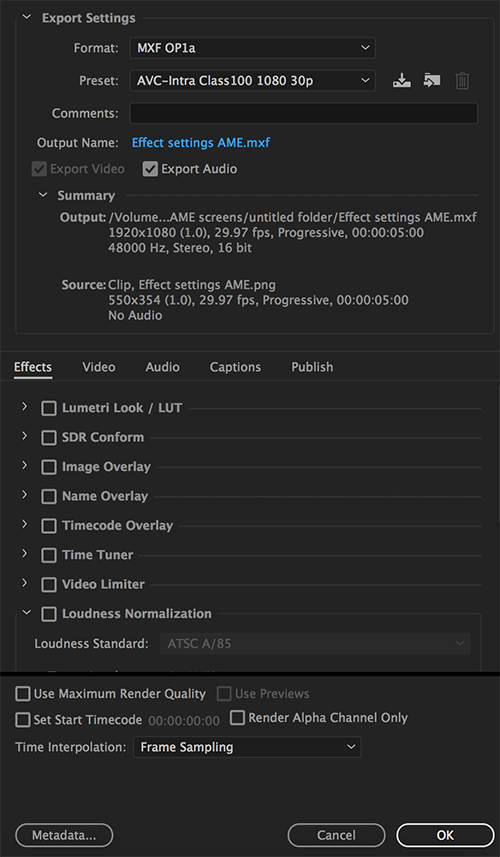
To apply loudness correction on a file, click its preset.

Apply loudness correction
Apply loudness correction -
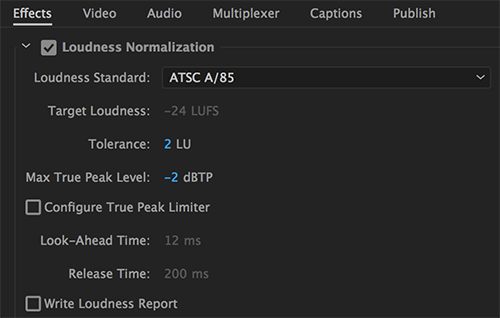
In the Effects tab, select the Loudness Normalization check-box.

Effects settings
Effects settings -
From the Loudness Standard drop-down list, choose a standard that conforms to the loudness standard of your region. There are three options:
- ATSC A/85
- EBU R128
- ITU BS.1770-3
You can only change the loudness for ITU BS.1770-3. You cannot change the loudness for the other standards.
-
To generate a report for the loudness standards for the media, select the Write Loudness Report check-box. The report is an xml file that contains information about the loudness value and true peak level.
-
Click OK.
Loudness normalization natively works with mono, stereo, and 5.1ch audio. If you use other than those channel types such as 4ch, 8ch, 16ch, and so on, the Channel Configuration screen appears.
You can create multiple audio streams in this user interface and you need to assign each channel stream to either mono, stereo, or 5.1. The total number of channels assigned here must match the number of channels in the source file in order to successfully normalize the audio.
