
Choose Window > Layers.
Last updated on
May 24, 2023
- InDesign User Guide
- Get to know InDesign
- Introduction to InDesign
- Workspace
- Generative AI (Not available in mainland China)
- Introduction to InDesign
- Create and layout documents
- Documents and pages
- Create documents
- Work with parent pages
- Work with document pages
- Set page size, margins, and bleed
- Work with files and templates
- Convert PDFs to InDesign Documents
- Create book files
- Add basic page numbering
- Number pages, chapters, and sections
- Convert QuarkXPress and PageMaker documents
- Share content
- Understand a basic managed-file workflow
- Save documents
- Grids
- Flex Layout
- Layout aids
- Documents and pages
- Add content
- Text
- Add text to frames
- Threading text
- South-East Asian Scripts
- Arabic and Hebrew features in InDesign
- Create type on a path
- Bullets and numbering
- Create math expressions
- Glyphs and special characters
- Text composition
- Composing CJK characters
- Text variables
- Generate QR codes
- Edit text
- Align text
- Wrap text around objects
- Anchored objects
- Linked content
- Format paragraphs
- Format characters
- Typography
- Format text
- Review text
- Spell check and language dictionaries
- Add references
- Styles
- Tables
- Interactivity
- Graphics
- Color and transparency
- Text
- Find and replace
- Share
- Export, import, and publish
- Place, export, and publish
- Publish online
- Publish online dashboard
- Place Firefly assets
- Copy, insert graphics
- Export to Adobe Express
- Export content for EPUB
- Accessibility enhancements for Indexes
- Adjust text resizing options
- Create accessible glossaries
- ARIA role and label support
- Adobe PDF options
- Export to HTML5
- Export content to HTML (Legacy)
- Export to Adobe PDF
- Export to JPEG or PNG format
- Import SVG files
- Supported File Formats
- Export and import User Settings
- Printing
- Place, export, and publish
- Extend InDesign
- Automation
- Troubleshooting
Note
Equitable Language: We are replacing non-inclusive language from InDesign 2022 (version 17.0) onwards, to reflect core Adobe values of inclusivity. Any reference to Master page is replaced by Parent page in our Help articles for the English, Danish, Hungarian, Spanish, Italian, Brazilian, Portuguese, and Japanese locales.
About layers
Each document includes at least one named layer. By using multiple layers, you can create and edit specific areas or kinds of content in your document without affecting other areas or kinds of content. For example, if your document prints slowly because it contains many large graphics, you can use one layer for just the text in your document; then, when it’s time to proofread the text, you can hide all other layers and quickly print the text layer only. You can also use layers to display alternate design ideas for the same layout, or versions of advertisements for different regions.
Think of layers as transparent sheets stacked on top of each other. If a layer doesn’t have objects on it, you can see through it to any objects on layers behind it.
Additional layer notes:
Each document layer has a disclosure triangle that can be expanded to reveal the objects and their stacking order on that layer for the active spread. Groups, buttons, and multi-state objects also have disclosure triangles that can be expanded to display their contained objects. You can re-order these objects, lock and unlock them, and add or remove them from groups.
Objects on parents appear at the bottom of each layer. Parent items can appear in front of document page objects if the parent page objects are on a higher layer. (See About parents, stacking order, and layers.)
Layers involve all pages of a document, including parents. For example, if you hide Layer 1 while editing page 1 of your document, the layer is hidden on all pages until you decide to show it again.
For information on converting layers from Adobe PageMaker® or QuarkXPress, see Converting QuarkXPress and PageMaker documents.

Create layers
You can add layers at any time using the New Layer command on the Layers panel menu or the New Layer button at the bottom of the Layers panel. The number of layers a document can have is limited only by the RAM available to InDesign.
Create layers
-
-
To create a new layer, do any of the following:
To create a new layer above the selected layer, click the New Layer button.
To create a new layer below the selected layer, hold down Ctrl (Windows) or Command (Mac OS) as you click the New Layer button.
To create a new layer at the top of the list, hold down Ctrl+Shift (Windows) or Command+Shift (Mac OS) as you click the New Layer button.
To create a new layer and open the New Layer dialog box, hold down Alt (Windows) or Option (Mac OS) as you click the New Layer button.
Specify layer options
-
Choose New Layer in the Layers panel menu, or double-click an existing layer.
-
Specify the layer options, and then click OK.
Color
Assign a color to identify the objects on that layer.
Show Layer
Select this option to make a layer visible. Selecting this option is the same as making the eye icon visible in the Layers panel.
Show Guides
Select this option to make the guides on the layer visible. When this option is not selected for a layer, the guides cannot be made visible, even by selecting View > Show Guides for the document.
Lock Layer
Select this option to prevent changes to any objects on the layer. Selecting this option is the same as making the crossed-out pencil icon visible in the Layers panel.
Lock Guides
Select this option to prevent changes to all ruler guides on the layer.
Print Layer
Select this option to allow the layer to be prevented from printing. When printing or exporting to PDF, you can determine whether to print hidden and nonprinting layers.
Suppress Text Wrap When Layer Is Hidden
Select this option if you want text on other layers to flow normally when the layer is hidden and it contains objects with text wrap applied.
Assign a layer color
Assigning a color to a layer makes it easier to distinguish the layers of different selected objects. For each layer that contains a selected object, the Layers panel displays a dot in the layer’s color. On the page, each object displays the color of its layer in its selection handles, bounding box, text ports, text wrap boundary (if used), frame edges (including the X displayed by an empty graphics frame), and hidden characters. The layer color does not appear for a deselected frame if its edges are hidden.
-
In the Layers panel, double-click a layer or select a layer and choose Layer Options for [layer name].
-
For Color, choose a color or choose Custom to specify a color in the system color picker.
Add objects to layers
Any new object is placed on the target layer, the layer currently displaying the pen icon in the Layers panel. Targeting a layer also selects it. If multiple layers are selected, targeting one of them doesn’t change the selection, but targeting a layer outside the selection deselects the other layers.
You can add objects to the target layer by any of the following methods:
Creating new objects with the Type tool or drawing tools.
Importing, placing, or pasting text or graphics.
Selecting objects on other layers, and then moving them to the new layer.
You cannot draw or place a new object on a hidden or locked layer. When you select a drawing tool or the Type tool, or place a file when the target layer is hidden or locked, the pointer changes to the crossed-out-pencil icon when it is positioned over the document window. Either show or unlock the target layer, or target a visible, unlocked layer. If you choose Edit > Paste when the target layer is hidden or locked, an alert message gives you the choice of showing or unlocking the target layer.
When you click a layer in the Layers panel to target it, the pen icon appears on the layer you clicked, and the layer also highlights to indicate that it is targeted.

Select, move, and copy objects on layers
By default, you can select any object on any layer. In the Layers panel, dots mark layers that contain selected objects. The layer’s selection color helps you identify an object’s layer. To prevent selecting objects on a specific layer, lock the layer.
-
Do any of the following:
To select individual objects on a layer, click the triangle icon next to the layer to display all, and select the target object. You can also drag the target object to a different location without selecting it.
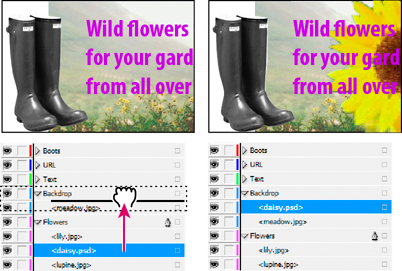
Dragging objects from one layer to anotherTo select all objects on a specific layer, hold down Alt (Windows) or Option (Mac OS) as you click a layer in the Layers panel.
To move or copy objects to another layer, use the Selection tool to select one or more objects on a document page or parent. In the Layers panel, drag the colored dot on the right side of the layer list to move the selected objects to the other layer.
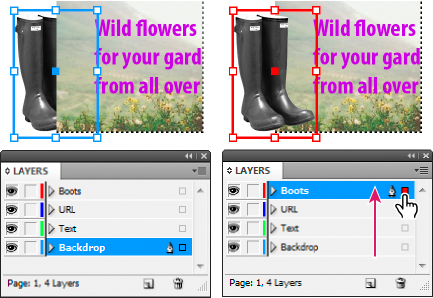
Moving an object to a new layer
Note
To move selected objects to a locked layer, hold down Ctrl (Windows) or Command (Mac OS) as you drag the colored dot. To copy selected objects to another layer, hold down Alt (Windows) or Option (Mac OS) as you drag the colored dot on the right side of the layer list to the other layer. To copy selected objects to a locked layer, hold down Ctrl+Alt (Windows) or Command+Option (Mac OS) as you drag the colored dot.
Paste objects into different layers
The Paste Remembers Layers command affects how objects pasted from other locations interact with existing layers.
If the Paste Remembers Layers command is selected, objects cut or copied from different layers retain their layer assignments when pasted to the new page or position. If you paste objects to a document that doesn’t have the same layers as the document from which they were copied, InDesign adds the objects’ layer names to the Layers panel in the second document, and pastes each object on its layer.
If the Paste Remembers Layers command is deselected, objects cut or copied from different layers are pasted together on the target layer.
-
Make sure that Paste Remembers Layers is deselected in the Layers panel menu.
-
Select objects and choose Edit > Copy or Edit > Cut.
-
In the Layers panel, click the other layer to target it.
-
Choose Edit > Paste.
Duplicate a layer
When you duplicate a layer, you copy its contents and settings. The duplicate layer then appears above the original layer in the Layers panel. Any duplicated frames that were threaded to other frames on the layer remain threaded. Duplicated frames whose originals were threaded to frames on other layers are no longer threaded to those frames.
-
In the Layers panel, do one of the following:
Select the layer name and choose Duplicate Layer [layer name] in the Layers panel menu.
Drag a layer name and drop it on the New Layer button.
Change the order of layers
Change the stacking order of layers in your document by rearranging the layers on the Layers panel. Rearranging layers changes the order of layers on every page, not just on the target spread.
You can also change the stacking order of objects within a layer by repositioning objects within the layer. See Arrange objects in a stack.
-
In the Layers panel, drag a layer up or down in the list. You can also drag multiple selected layers.

Show or hide layers and objects
You can hide or display any layer at any time, and you can hide or display objects on a layer. Hidden layers and objects can’t be edited, and don’t appear on screen or in print. Hiding layers can be useful when you want to do any of the following:
Hide parts of a document that are not meant to appear in the final document.
Hide alternate versions of a document.
Simplify the display of a document, to make it easier to edit other parts of the document.
Prevent a layer from printing.
Speed up screen redraw when a layer contains high-resolution graphics.
Note
By default, text continues to wrap around objects on hidden layers. To ignore text wrap settings for hidden objects, choose Layer Options from the Layers panel menu, and then select the Suppress Text Wrap When Layer Is Hidden option.
-
Do any of the following:
To hide or show one layer at a time, in the Layers panel, click the square at the far left of a layer name to hide or show the eye icon for that layer.
To show or hide individual objects in a layer, click the disclosure triangle to view all objects in a layer, and then click the eye icon to show or hide the object.
To hide all layers except the selected layer, or to hide all objects on a layer except the selected object, choose Hide Others in the Layers panel menu. Or, Alt-click (Windows) or Option-click (Mac OS) the square on the far left side of the layer or object you want to remain visible.
To show all layers, choose Show All Layers in the Layers panel menu. Or, Alt-click (Windows) or Option-click (Mac OS) the square on the far left side of a visible layer or object to show all layers or all objects in a layer.
Set a layer as nonprinting
-
Select the layer in the Layers panel.
-
Choose Layer Options from the Layers panel menu.
-
To prevent the layer from being printed, deselect Print Layer, and then click OK.
Note
When you print or export to PDF, you will still have the option of printing hidden and nonprinting layers.
Lock or unlock layers
Locking is useful for preventing accidental changes to a layer. A locked layer displays a crossed-out pencil icon in the Layers panel. Objects on locked layers cannot be selected or edited directly; however, if objects on locked layers have attributes that can be edited indirectly, they will change. For example, if you edit a tint swatch, objects on locked layers using that tint swatch will reflect the change. Similarly, putting a series of threaded text frames on both locked and unlocked layers will not prevent text on locked layers from recomposing.
You can also use the Layers panel to lock or unlock objects in a layer. See Lock or unlock objects.
-
Do any of the following:
To lock or unlock one layer at a time, in the Layers panel, click a square in the second column from the left to show (lock) or hide (unlock) the layer.
To lock all layers except the target layer, choose Lock Others in the Layers panel menu. Or, Alt-click (Windows) or Option-click (Mac OS) the the square left of the layer you want to remain unlocked.
To unlock all layers, choose Unlock All Layers in the Layers panel menu.
Delete layers
Remember that each layer is document-wide—it appears on every page of a document. Before deleting a layer, consider hiding all other layers first, and then turn to each page of the document to verify that it is safe to delete the remaining objects.
-
Do any of the following:
To delete a layer, drag a layer from the Layers panel to the Delete icon or choose Delete Layer [layer name] from the Layers panel menu.
To delete multiple layers, hold Ctrl (Windows) or Command (Mac OS) while you click the layers to select them. Then drag the layers from the Layers panel to the Delete icon or choose Delete Layers from the Layers panel menu.
To delete all empty layers, choose Delete Unused Layers in the Layers panel menu.
To delete an object on a layer, select the object in the Layers panel, and then click the Delete icon.
Merge layers in a document
You can reduce the number of layers in a document without deleting any objects by merging layers. When you merge layers, objects from all selected layers are moved to the target layer. Of the layers you merge, only the target layer remains in the document; the other selected layers are deleted. You can also flatten a document by merging all layers.
Note
If you merge layers containing a mix of page objects and parent items, the parent items move to the back of the resulting merged layer.
-
In the Layers panel, select any combination of layers. Be sure to include the layer you want to target as the merged layer. If you’re flattening the document, select all layers in the panel.
-
Click any selected layer to make it the target layer, indicated by the pen.
-
Choose Merge Layers in the Layers panel menu.
You can also merge identically named layers for exporting a book to PDF.
