
Version
Last updated on
Mar 10, 2026
- RoboHelp User Guide
- What’s new
- Introduction
- Projects
- Collaborate with authors
- PDF Layout
- Editing and formatting
- Format your content
- Create and manage cross-references
- Create and manage links
- Single-source with snippets
- Work with images and multimedia
- Create and use variables for easy updates
- Work with Variable Sets
- Use Find and Replace
- Auto save your content
- Side-by-side editing in Split View
- Use the Spell Check feature
- Create and Edit Bookmarks
- Insert and update fields
- Switch between multiple views
- Autonumbering in CSS
- Insert a watermark in RoboHelp project
- Work with master pages
- Work with labels
- Configure a grammar and spell checker
- Import and linking
- TOCs, indexes, glossaries, and citations
- Conditional content
- Microcontent
- Review and Collaboration
- Translation
- Generating output
- Publish output
- Publish to a RoboHelp Server
- Publish to an FTP server, a Secure FTP server, or a File System
- Publish to SharePoint Online
- Publish to Zendesk Help Center
- Publish to Salesforce Knowledge Base
- Publish to ServiceNow Knowledge Base
- Publish to Zoho Knowledge Base
- Publish to Adobe Experience Manager
- Publish to Atlassian Confluence Knowledge Base
- Publish to a RoboHelp Server
- Appendix
This article highlights all the new and enhanced features, along with the issues resolved, across the patch releases and main release for the RoboHelp September 2022.
Alert
If you're using Update 1 of RoboHelp (2022 release), you must manually download and install the latest version of RoboHelp. To download the latest release, view Download RoboHelp.

2022.6.34

2022.6.26
New and enhanced features
Review feature migration to align with the updated CC-storage framework
Update 6 of RoboHelp introduces key backend enhancements to the Review feature, driven by the retirement of certain CC-Storage APIs. To ensure continued reliability and compatibility, the internal code for the Review feature has been updated to align with Adobe’s new CC-Storage architecture.
While the user interface and review workflow remain unchanged, all new reviews will now be created and stored using the modernized CC-Storage infrastructure. Existing reviews will also be seamlessly migrated to the new storage system after the update with no action required from users.
As part of this enhancement, the RoboHelp Review Web App is also being updated allowing you to access and manage reviews directly through a web browser.
Additionally, users must transition to the updated version to continue using the review functionality beyond Q4 2025.
For more information view, Review and collaboration.
Fixed issues
Publishing
HTML5 output
- In the Responsive HTML5 output, the search function doesn’t work as expected when the project is hosted through FTP or WAMP. (Bug ID: 12502)
Zendesk
- Image uploads to Zendesk are failing. (Bug ID: 12788)
Security
- Users facing vulnerability with the Responsive HTML5 output generated from RoboHelp 2022.5.28. (Bug ID: 12829)
Version
2022.5.28
2022.5.24
Fixed issues
Authoring
- The "Restart Numbering from" option for the "p" tag under Content Properties is missing. (Bug ID: 12474)
Publishing
CHM output
- CHM output displays invalid characters. (Bug ID: 12462)
HTML5 output
- In the Responsive HTML5 output, line breaks get removed. (Bug ID: 12465)
- Invalid characters appearing in PDFs generated via the Save As PDF option. (Bug ID: 12454)
Translation
- Unable to import translated files if non-XLIFF files are present in the translation folder. (Bug ID: 12488)
- Cross-references in a translated project don't update automatically and continue to display in the source language. (Bug ID: 12489)
Version
2022.4.179
2022.4.182
New and enhanced features
- Enhanced Variable and Variable Set editor
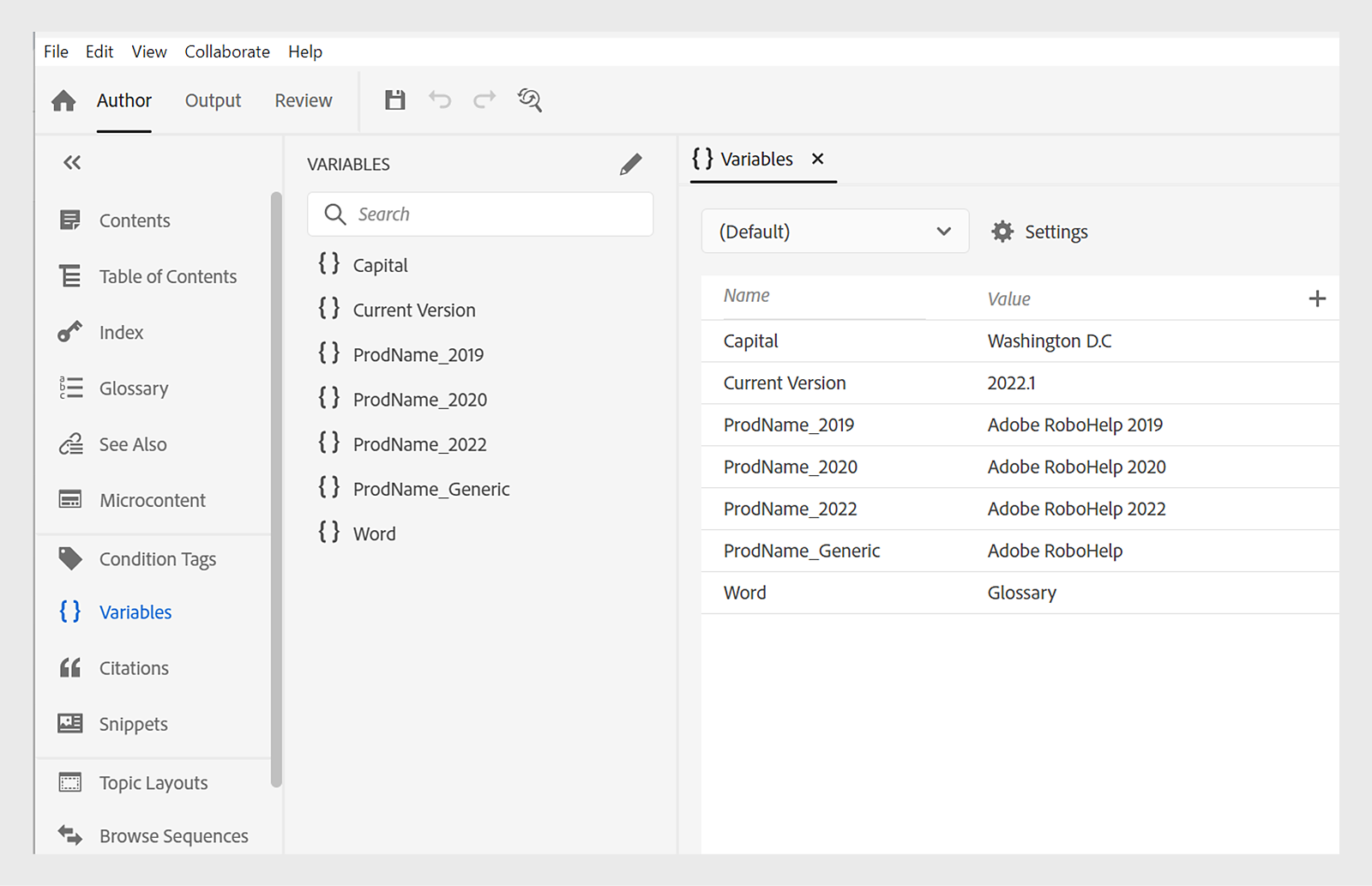
Previously, accessing the Variables panel from the Author tab and Variable Sets from the Output tab resulted in frequent switching between the Author and Output tabs. Update 4 of RoboHelp brings a thorough revamp to the Variable and Variable Sets editor to give you a single place to manage your variables and variable sets. User Interface of Variable and Variable Sets editors has now been merged. That streamlines the process of managing both directly from the Author tab. Additionally, the tabular view provides a quick and simple display of all Variables, various Variable Sets, and their respective values, allowing you to easily view and edit multiple variables at once.
For more information view, Create and use variables for easy update.
- Easy access to Sample Projects from Welcome screen
Using RoboHelp 2022 Update 4, you can now easily access the sample projects from the Welcome screen. You can choose from the three sample projects—About RoboHelp, Compass Travel, and FintecNEWS from the Welcome screen to explore and familiarize yourself with the various features available in RoboHelp.
For more information regarding sample projects, view Work with sample projects.

- Enhanced Images report showing Alt Text for images
Managing a project with lots of images can be challenging particularly in terms of identifying those images that lack alt text. RoboHelp 2022 Update 4 focuses on the increasing importance of accessibility. Hence an Alt Text column has been added to enhance the Images report. This enhancement enables you to easily view and verify alt text for all the images at one glance. Additionally, you can also use the Alt Text filter in the Settings panel to filter the images based on whether their alt text is empty or non-empty.
For more information, view Images reports.

- Enhancements to PDF output
There have been several enhancements to PDF output, which include: Setting page order and number of pages per sheet, Hyperlinking Glossary page in PDF output, Disabling chapter AutoNumbering in TOC, and Resetting the page number of only the first occurrence of a Page Layout.
- Setting Page Order and number of pages per sheet
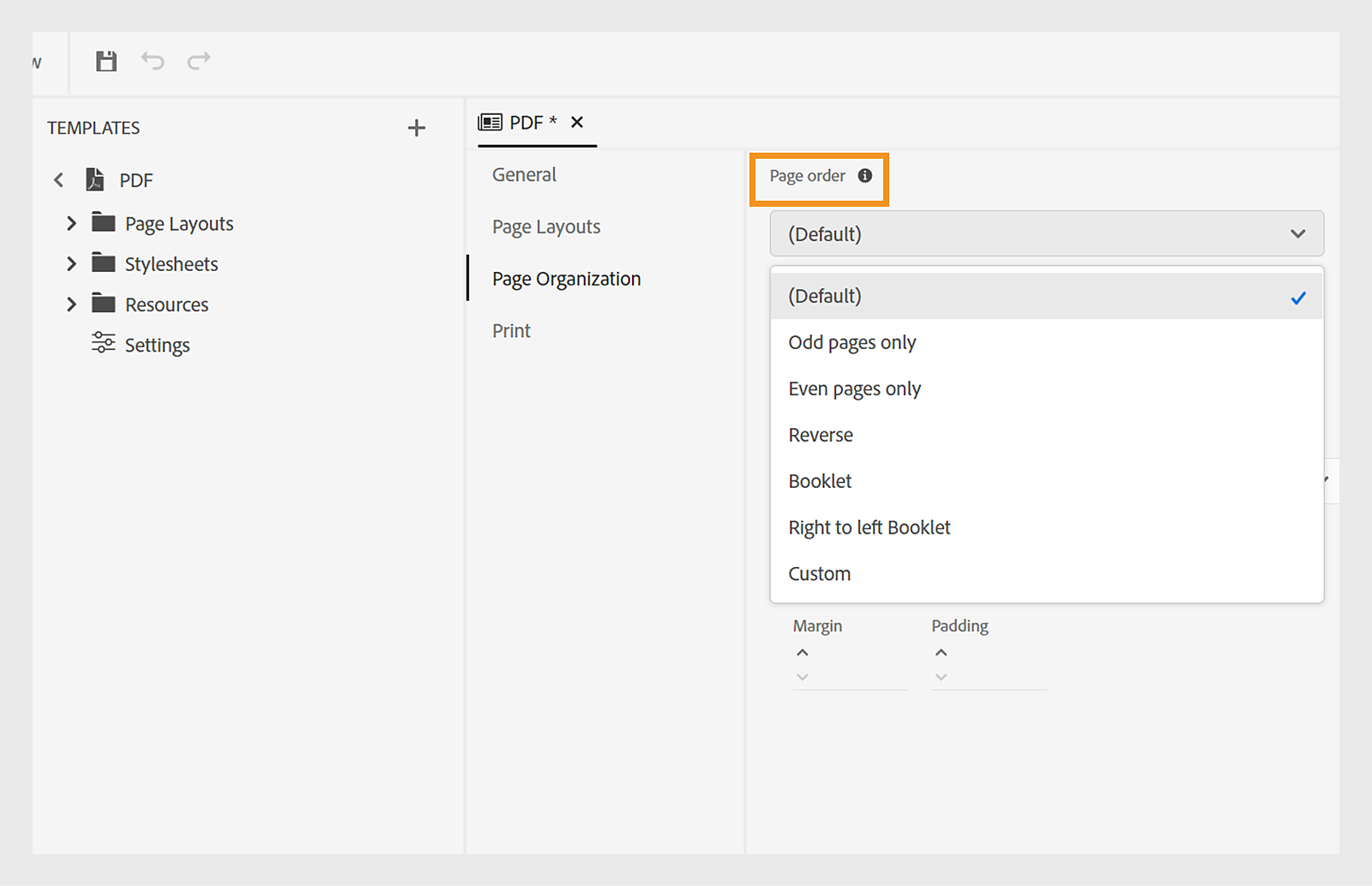
With RoboHelp Update 4, you can now specify the page order and control the number of pages you want on a particular sheet of the PDF output. You can choose from predefined page order options or create your custom order. Page order allows you to print a booklet kind of output, where by collating, folding, and stapling the sheets, you can create a single book with pages in the correct sequence. You can also define the number of pages you can print on a single sheet, allowing you to create outputs like three-fold pamphlets.
For more information, view Page Organization.
- Hyperlnking glossary page in native PDF output
With the latest update, you can add any Glossary term into a topic and hyperlink it to the Glossary page in the PDF output. This functionality creates a link within the PDF output, allowing you to click the term and be directed to the Glossary page to read the definition, ensuring a smooth experience. For more information, view Link glossary terms to glossary page.

- Disabling chapter AutoNumbering in TOC
Often, there's a preference not to display the chapter autonumber in the Table of Contents in the PDF output as dictated by the stylesheet. With this update, you can display chapter names without chapter autonumbers in the TOC by simply deselecting the Do not show chapter autonumber in the TOC option in the Template > Settings > General.
For more information view, Do not show chapter autonumber in the TOC.

- Resetting the page number of only the first Occurrence of a Page Layout
Previously, you could reset the page number of the initial page in any layout. This used to reset the first page of all instances of that layout. However, the latest RoboHelp update enables you to reset the page number specifically for only the first occurence of any Page Layout, with the following pages being numbered automatically thereafter. For example, if you set the page number to restart from 2 and select the option Apply to the first occurence only, then only the first page of the first chapter will begin from page number 2. Subsequent pages will then continue numbering automatically after 2.
For more information, view Page Numbering Restart.

Fixed issues
Application
- After upgrading to RoboHelp 2022, the FrameMaker linked documents fail to preserve the mapped styles and require configuring the styles again before creating topics in RoboHelp. (Bug ID: 12256)
- Under Preferences "Move deleted files to recycle bin" option not working as expected. (Bug ID: 12248)
- Editing map numbers not working properly, and it displays an error "this number already exists" if the initial digit matches any other map number. (Bug ID: 12219)
- CSS with grouped styles appears in the CSS editor but not in the Style panel. (Bug ID: 12198, 12033, 11994)
- The mapping from the Word table style to the table style included in the .CSS file doesn't get created as expected. (Bug ID: 12141)
- After upgrading from Classic to new version, hierarchy of baggage files was not maintained inside assets/docs folder. (Bug ID: 12125, 12082)
- Filename(filename.htm) appears instead of topic title in TOC sometimes. (Bug ID: 12112, 11913, 11627)
- Certain images are listed in both Used In column and Unused Images column in Images Report. (Bug ID: 11263)
- Label for "Hide in output" renamed under TOC Content Properties. (Bug ID: 12089)
- Non-snippet files being incorrectly added to snippetcategories.xml (Bug ID: 12069, 12039)
- Conditions tag not honored in table headers. (Bug ID: 12065)
- Merge conflict issues with RoboHelp 2022 and GitHub integration. (Bug ID: 11928)
SharePoint
- Experiencing prolonged delays and receiving failure messages on the SharePoint publishing side. (Bug ID: 12318)
- A deleted topic is still visible in RoboHelp after checking in and updating to the latest version. (Bug ID: 12264)
- Search functionality isn't working in the Frameless output when using the top navigation template on SharePoint. (Bug ID: 12086)
- Topic synchronization with SharePoint displays a message " Check if username and site permission is correct" upon opening RoboHelp. (Bug ID: 12035)
- Performance improvement for time taken to synchronize server changes on opening a project synced with SharePoint Online for collaboration. (Bug ID: 12034)
- Hyperlinks are not working on SharePoint. (Bug ID: 12031)
- Hyperlink between two child projects is broken when the output is viewed from SharePoint online. (Bug ID:11615)
- RoboHelp not adhering to Graph Throttling process. (Bug ID: 11357)
Publishing
Microcontent
Microcontent "Reply" not using proper formats in output. (Bug ID: 11480, 10814)
Frameless
- The TOC takes longer time to load when the project is published in Frameless output. (Bug ID: 12154)
- Print functionality in the Frameless output cuts off the last couple of lines of a topic that is longer than 1 page. (Bug ID: 12135, 10766)
- Preserve additional <head> tag entries in Frameless output for SEO purposes. (Bug ID:11710)
- After accessing Frameless output from context sensitive help, it hides both TOC and miniTOC (Bug ID: 11258)
- Support for CMYK color space conversion not working. (Bug ID: 12101)
- Unable to generate Microcontent using JSON file format. (Bug ID: 12002)
- On adding new terms to an existing glossary, the term is appended to the end of the glossary instead of being added alphabetically to the PDF output. (Bug ID: 11938)
- When a PDF format cover is used in a PDF template, RoboHelp inserts a blank page before the cover. (Bug ID: 11885)
Content Only
- The topics and their references included in the TOC do not appear in the XHTML output. (Bug ID: 12168)
- On generating XHTML output the topic and title names are mixed up in the “_prj.xml” file in the output folder. (Bug ID: 12167)
- The glossary is not being selected from Content only preset. ( Bug ID: 11573)
Translation
- Bookmarks are not handled correctly in the export XLIFF process. (Bug ID: 12164)
- Importing XLIFF files are getting stuck indefinitely. (Bug ID: 12037)
- Translation issues with Trados regarding glossaries and variables. (Bug ID: 12010)
Security
- Security vulnerabilities in Responsive output. (Bug ID: 12255)
- Users facing vulnerability issues with RoboHelp_CSH.js. (Bug ID: 12124)
Version
2022.3.93
2022.3.107
New and enhanced features
- Citation Management
With RoboHelp Update 3, you can add citations to your project. Citations are used as an acknowledgment of the sources that were referred to in your content. Add citations to your content in multiple styles like Modern Language Association (MLA), American Psychological Association (APA), Chicago, Institute of Electricals and Electronics Engineers (IEEE), and American Heart Association (AHA). You can also add a bibliography or references page at the end of PDF output.
For more information on adding and applying citations, view Create and manage citations.

- Snippet Categorization
With the latest update of RoboHelp, you can organize your snippets within categories. You can save your snippets in meaningful categories to search and use them quickly.
For more information about how to add a snippet category, view Single-source with snippets.

- Publish output to Atlassian Confluence
Adobe RoboHelp now allows you to publish Knowledge Base output directly to Atlassian Confluence. Confluence is a team workspace to create, collaborate and organize all the work in one place.
For more information on setting up the publish profile and preset, view Publish to Confluence Knowledge Base.

- Redesign of CSS editor
In this update, the CSS editor is redesigned for a better user experience with the introduction of new selectors and style properties.
For more information on adding styles in the CSS editor, view Apply Styles.
- Enhancement In Add style dialog box
Selectors are used to merge multiple styles together to form one methodical style form for the content. You can now add selectors to create a new style.

- Management of custom Properties of Styles
RoboHelp Update 3 introduces you to a new properties table under the Preview section for styles. You can edit the custom properties of style more efficiently and quickly from the properties table.

- Customizing PDF output
With this update, you can customize the PDF output with chapter page break and front matter and back matter options for page layouts.
- Chapter page break in PDF
Now you can also start a chapter from the current page. If you choose to do so, all chapters are published in continuation without any page breaks. For example, if a chapter ends in the middle of page 15, the next chapter starts from the 15th page itself.
For more details on chapters, view Advanced PDF settings.

- Page Layouts for front matter and back matter in PDF
With RoboHelp Update 3, style the front and back matter pages of your PDF. Design the front matter layout and use them as fallback layout for TOC, List of Figures, and List of Tables. Similarly, design the back matter layout and use them as fallback layout for Index, Glossary, and Citations pages.
For more details on front matter and back matter, view Advanced PDF settings.

Fixed issues
Application
- When selecting a CSS pseudo-class in the template editor, an application error is displayed. (Bug ID: 11703)
Authoring
- For some files, content panel is displaying filename instead of topic title. (Bug ID: 11277)
- In some cases, some items are showing with file name in the content panel. (Bug ID: 10855)
Publishing
General
- Option for "Do not show page count for the first level in TOC" isn't working. (Bug ID: 11613)
- Publishing content to the File System takes a long time. (Bug ID: 11576)
Frameless output
- When a topic from the TOC is opened in a new tab by right-clicking, the navigation pane is blank in the published output on RoboHelp Server. (Bug ID: 11654)
- Filter tab isn't working on the homepage on mobile devices. (Bug ID: 11254)
- When deleting expand all button from page layout, share button is deleted from the output. (Bug ID: 10738)
- Breadcrumbs function TopNavigation doesn't work when parent folder has same name as topic folder. (Bug ID: 10583)
- TOC isn't loading in output when "Merge Project of same Type" is checked in RoboHelp Server. (Bug ID: 9944)
HTML5 output
- When a particular topic is opened in a new tab by right-clicking, the topic title appears as header. (Bug ID: 11575)
Word and PDF output
- In some templates, layout.css and content.css aren't added to all page layouts for Word and PDF templates. (Bug ID: 11723)
Translation
- Body tag and content is lost on importing an XLIFF file. (Bug ID: 11850)
- Snippets are lost on importing an XLIFF file. (Bug ID: 11327)
Version
2022.2.22
2022.2.24
Fixed issues
Application
- When changing topics, on the Style panel, the stickiness of the Preview button does not work as expected. (Bug ID: 11471)
Publishing
General
- In the German locale, after setting Publish Profiles for File System, the error message, "Invalid destination path", displays. (Bug ID: 11482)
PDF output
- In some cases, the PDF metadata is missing after upgrading from Adobe RoboHelp 2022. (Bug ID: 11460)
- A notice about the evaluation version of the PDF reactor is displayed when using the Save As PDF option. (Bug ID: 11473)
- Headings are missing for Front Matter and Back Matter items in TOC. (Bug ID: 11492)
- In the PDF template, the Use Headings up to Level option under TOC Structure is not working. (Bug ID: 11495)
Translation
- Project files (.rhpj), PDF, and Word template files (.plt and .wlt) are not exported during translation. (Bug ID: 11502)
Version
2022.1.188
2022.1.187
New features and enhancements
- Redesign of CSS editor
In this update, the CSS editor is redesigned for a better user experience with easy filtering, search, and formatting of styles.
For more information on adding styles in the CSS editor, see Apply Styles.
- Search and filter styles list
Searching styles from a long list of styles is now easier. This new feature will help you in filtering the styles depending on their category. For example, if you need to search for any paragraph style, the Filter feature will sort only paragraph styles. You can select multiple style categories in the list.
For more information on using search and filter features in the styles list, see Apply Styles.

- Style list settings
This feature allows you to select the order of listing styles. You can choose the order of the list as per your requirement. The order of the style list can change to view the full style name or the display name, preview the style in the list itself, and alphabetically. You can choose multiple options at one time.
For more information on implementing view mode and list order, see Apply Styles.

With RoboHelp Update 1, you can import additional stylesheets in the current one with the @import rule. All new styles will be visible in the CSS Editor and the Styles panel.
For more information on adding metadata in PDF output, see Apply Styles.
- Non-publishable Notes
This new feature will let an author add personal notes or additional information in the topic properties of the project file. These notes are visible in the authoring view only, and not in the published output. They are searchable in reports.

- Default Location of Projects
In the new feature, you can change the default location of your project files. In earlier versions, there was a default location for all the projects. With the new update, the default location can be changed from the Application Preferences as per the requirement. Once the default location is changed, it changes the output location and the location for new projects as well.
For more information on changing the default location, see Application Preferences.

- Sticky right-panel
In this update, RoboHelp will remember the collapsed or visible state of the right panel when creating a new topic or switching topics. If you have collapsed the right panel, it will remain in the same state when creating a new topic. It will also remember the tab selected in the right panel.
- Table header styling
With the new table header style editing feature, you can format the header rows in the table. Formatting includes text wrapping, font size, border and font color, pagination, background, and many more. For easily converting rows to headers, use the Header Row drop-down list and choose which row show be converted into the header row.
For more information on table header styling, see Work with tables.

- Integration with DeepL translation API
Update 1 of RoboHelp provides out of the box integration with DeepL Translator.
For more information related to translation, click Translating projects using Machine Translation.

- Repeat header rows in the PDF output
With this feature, if the table spans across pages in PDF output, the header rows will repeat on the all pages. Specified header rows, for instance, will be printed on all additional pages if the table is printing on more than one page.
For more information on table header rows, see Work with tables.

- Additional metadata in PDF output
Adobe RoboHelp allows you to add additonal metadata fields such as description writer, copyright notice, keywords and many more in PDF output. You can also add custom metadata as name value pair or by importing an XMP file. These metadata values are available in the generated PDF output.
For more information on adding metadata in PDF output, see Metadata.

- JavaScript to style PDF output
With RoboHelp Update 1, PDF output publishing features allows you to run JavaScript to control your content or style applied on content before the final PDF is generated. This feature gives you complete control over how your final output is generated. It gives callbck functionality to support JavaScript execution.
For more information on adding metadata in PDF output, see Work with other styles .
Fixed issues
Application
- On creating a topic, after changing the title and filename in the Topic Properties panel, an extra topic is created. (Bug ID: 1184)
- When syncing from project to source, an incorrect message is displayed. (Bug ID: 11223)
Word Import
- Auto number settings and style are not applied correctly in the imported Word document. (Bug ID: 11164)
- After importing a Word document, styles are not applied to a few tables as expected. (Bug ID: 11163)
- The content inside the shape with style information in Word Document Drawing Canvas is importing incorrectly. (Bug ID: 6781)
- After importing a Word document, some content is missing from the text area inside the shape in RoboHelp. (Bug ID: 11123)
- A hyperlink created in Word does not work when imported into RoboHelp. For example, the source URL has topic.html, and it got added as a prefix in the URL. (Bug ID: 11221)
- In some cases, external hyperlinks created in Word do not launch in RoboHelp. (Bug ID: 11119)
Authoring
- An issue in inserting a child HTML Help in TOC. (Bug ID: 11220)
- MiniTOC does not handle bookmarks placed at headings. (Bug ID: 11198)
Publishing
General
- Issues related to Dynamic Content Filters in sections with missing or no topics in TOC. (Bug ID: 10888)
PDF output
- After upgrading the application and generating a PDF output, a few topics are duplicated in the output. (Bug ID: 11174)
- In some cases, an image in a topic does not get displayed in a PDF output. (Bug ID: 11278)
Word Output
- In a Word output, tables are not always properly aligned. (Bug ID: 9765)
- In case sections are not set up, then topic titles were not considered chapter names. (Bug ID: 10431)
Frameless Output
- The "Use lowercase file names" option is not correctly applied to thumbnails(Bug ID: 10431)
- In the Japanese locale, Expand All and Favorites buttons are not translated. (Bug ID: 11131)
- The search result does not display the code in multiple lines. (Bug ID: 11135)
Responsive HTML5 output
- csh-trigger.min.js file is being flagged by Checkmarx security software as a security risk. (Bug ID: 11289)
Translation
- For new profiles, the Google Translation API Key does not work as expected. (Bug ID: 11159)
- For the EN-GB locale, the locale code is set to EN-UK. (Bug ID: 11279)
- The XLIFF translation suspends when there is any numeric value in a paragraph. (Bug ID: 11145)
Security
- Users facing content security policy violation. (Bug ID: 10938)
Version
2022.0.361
2022.0.348
New and enhanced features
Grammar and spell check: Eliminate any grammatical error with the out-of-the-box grammar checkers (Sapling and Bing) or with any other author assistant tool of your choice. For more information, see: Check grammar and spelling and Configure grammar and spell checker profile
PDF templates: Publish well-designed PDFs with consistent layouts from RoboHelp. Users can create templates to set the layout and styling for content and apply various settings to fine-tune the PDF. Get out-of-the-box sample templates for PDF publishing, which can be customized in the WYSIWYG template editor. For more information, see: PDF templates, Design a page layout, Publish PDF output, Work with the common content styles, Components of a PDF template
MathML support: When enabled, you'll be able to render any MathML equation in your content to a PDF output. In the Advanced tab of the PDF preset, you can find the option to enable or disable MathML support.
PDF Conformance support: In this release, we’ve added support for PDF conformance. PDF conformance ensures that a PDF complies to a set of standards, such as, accessibility, colors, images, encryption, forms, and so on. For example, you can choose any standard, PDF/A-1a, PDF/A-1b, PDF/A-2a, PDF/A-2b, PDF/A-2u, PDF/A-3a, PDF/A-3b, PDF/A-3u, and so on. The drop-down list to choose conformance is in the Advanced tab of the PDF preset.
PDF Security Settings: The PDF preset contains a new tab, Security. Using the options in the tab, you can set security-related restrictions on the PDF document.

The following options are present in the Security tab:
Set password to open the document: When enabled, you can set a password so that any user that opens the PDF will be prompted to enter the password that you've set.
Set the document restrictions: When enabled, you'll be able to set the following options:
- Owner password: An owner password allows certain operations and restrictions that are applied to the PDF document. The following operations are present:
- Printing: When enabled, a user can print the PDF.
- Draft quality printing: Enable this checkbox if you want to preserve printer ink while printing.
- Content copying: Enable this checkbox if you want a user to copy a block of content from the resultant PDF.
- Annotations: Enable this checkbox if you want a user to annotate text in the PDF.
- Content modifications: If you want the user to edit any content on the PDF, enable this checkbox.
- Content copying for accessibility: Allows screen reader software to utilize the text within the PDF file for reading the PDF file.
- Document assembly: When enabled, a user can use the document and add or insert pages (or other documents) to the document.
- Printing: When enabled, a user can print the PDF.
PDF Compression
In the Advanced tab of the PDF preset, we’ve added compression support for PDF. The option Use full compression to optimize the PDF size is introduced. When enabled, you’ll be able to generate a PDF file with full compression, which will reduce the size of the PDF significantly.
Format TOC leader
In this release, you can specify the TOC leader with a dotted, solid, space or any other character.
Page count
You can now skip certain pages from the Page Count option. This is useful in scenarios such as if you want the numbering to start after the cover and TOC pages.
PDF Print options
You can include the following Printer marks:
- Crop Marks
- Bleed Marks
- Registration Marks
- Color Bars
- Page Information
You can also specify the bleed box size and set the color space to CMYK or RGB.
ICC Profile
Specify an ICC Profile when you want to create certain PDF/A and PDF/X conformance modes along with CMYK color space. It can be provided as a local file, a web URL, or a standard name.
Multi-level TOC
In this release, you can create a TOC in the PDF output according to the hierarchy in the project TOC. The TOC can have any specified level.
Chapter TOC
In a PDF or printed documentation, it's common to have a chapter-specific mini TOC at the start of the chapter. You now have an option to insert the chapter TOC in the page layout editor and apply styles to font, leader, and so on. In addition, you can also sequence a TOC, for example, title, chapter TOC, and then the chapter content.
Table continuation marker
Large tables generally get distributed across pages in the PDF. To ensure that a table flows seamlessly between the end of a page and the beginning of the next page, you can enable the continuation of all tables in a PDF.
Changes to Index
On the Index page, by default, the terms are grouped by the first letter of their words. You can use the CSS, idx-keyword-group{}, to style the group.
WORD TEMPLATE
Like a PDF template, you can also create and customize a Word template. You can create custom Word templates with specific page layouts and define formatting for page layout components (like TOC, index, glossary) or components (like heading, paragraph, list) using stylesheets.
For more information, see Generate Word output.
Word template in the output preset
In this release, you can generate a Word output using a template.
To start using a template, you must first select a template. In the Layout tab of the Word preset, select the template from the dropdown list.
Then, to customize the template, in the Templates panel, select Edit from the context menu.

For more information, see Generate Word output.
Other enhancements in this release
Positioned DIV
Adobe RoboHelp (2022 release) added a Positioned DIV, using which a user can specify the positioning method for an element. To insert a Position DIV in a topic, select Insert HTML Element > Positioned Div. In the container that appears in the topic, the X and Y positions are absolute. You can adjust the width and height of the container. In addition, you can adjust the margins of the container. You can change the position of the container by changing the left, right, top, and bottom values in the LAYOUT section of the Content Properties panel.
z-index
The z-index property specifies the stack order of an element. The z-index CSS property sets the z-order of a positioned div element and its descendants.
z-index only works on positioned elements (position: absolute, position: relative, position: fixed, or position: sticky).
Specify the z-index in the Layout section of the Content Properties panel.
Clear Inline Formatting
After you've applied formatting to a block of text and then applied inline formatting to a part of the text, you can clear the inline formatting that you've applied.
Select the block of text and in the Content Properties panel, select Text Formatting > Clear Inline Formatting.
Redesign of Template Panel
In this release of Adobe RoboHelp, the Skins panel has been renamed to the Templates panel.
The Templates panel is a one-stop panel to manage all the output templates.


When you select Done, the new template gets created. A new folder gets created for the template.
User-specific review data
In this release, we’ve removed user-specific review data from the project file. The Review ID is only stored in Creative Cloud.
The information about the Review ID is found in the upgrade logs.
Changes to the Snippets panel
In previous versions of RoboHelp, you were not able to see the description of a snippet in the list of snippets. In this release, you can view the description by hovering on the I icon on a snippet.
Project Settings
After upgrading a project to RoboHelp (2022 release), in the settings folder, you can find the JSON files for tag groups, colors, fields, status, and so on.
Dynamic Content Filtering expressions
In this release of RoboHelp, you will see Condition Expressions in Dynamic Content Filtering section. An expression is a set of instructions. Expressions specify topics or content to include or exclude from the output. You can define a basic expression that excludes tags, or a complex expression with Boolean operators, such as AND, OR, NOT.

For more information, see Condition expressions.
Rotation and scaling
For any content, such as an image, table, or positioned div object, you can now rotate the object on its axis, scale the object, and change the origin of the transformation in terms of X and Y offset. By default, the origin of transformation is the center of the element.
Scaling is a transformation technique that resizes the image on a two-dimensional plane. Both the horizontal and vertical dimensions are resized at different scales.
There are newe CSS properties for rotate and scale. For example,
<img height="304" src="assets/images/image.png" style="transform: scale(1) rotate(90deg);transform-origin: 0px 3px" width="473" />
White spaces
The CSS property whitespace controls how white spaces are handled and how the text wrapping happens on the line boundary in any paragraph. In RoboHelp, the following options are supported:
- normal
- pre
- nowrap
- pre-wrap
- pre-line
- break-spaces
To access these options, select your template > Stylesheets > Content > White-space.
For more information on the properties, see the MDN help docs.

Transparency
In the Layout section of the property panel, there is a new property Transparency, which you can use to set the transparency of any content or element. You can set the transparency between 0 and 1 or 0% and 100%. The CSS also provides this support as opacity.
Master page
Master pages used in the PDF or Word output template have been renamed as Page Layout.
Master pages used for topic templates or for online outputs have been renamed as Topic Layouts.
For more information, see Templates in Adobe RoboHelp.
Import Settings dialog has a new home
In this release, you can launch the Import Settings dialog from the File menu.
Select File > Import Settings > From 2019/From 2020 and the Import Settings dialog launches.
Fixed Issues
Application
- After upgrading a project to RoboHelp 2020, the Drop-Down title values appear as duplicate in the output. (Bud ID- 10774)
Authoring
- When entering a link in the skin editor Layout > Header Links, an absolute path is required. Add a browse button to create a relative path. (Bud ID-10539)
- There’s duplicate text in a cross-reference link in a Word output. For example, the cross-reference "See point 5 point 5", where the first instance of "point 5" is text, and the second is a link. (Bug ID-10519)
- A CSS that contains @media styles does not get parsed as expected. If the line is commented out, the CSS parses as expected. (Bud ID-10142)
- In RoboHelp, add an option to insert a paragraph space inside list items, for example, a bullet list, numbered list, or a multi-level list. (Bud ID-9859)
- In the authoring view, introduce a button to add a generic <div>...</div> section in a topic. (Bud ID-9821)
- In RoboHelp 2020, you're unable to apply styles on a Text Box, for example, the height/width, margins or border width, or colors. The default design of .text-box is defined in the output in /template/styles/topic.min.css. You can override it with a custom CSS, however removing attributes (for example, height) doesn’t allow the custom CSS to override the styles, and falls back to the default CSS, topic.min.css. (Bud ID-9217)
- If you have a two-column style with some text, and you click the left column, you cannot see the cursor. If you click the other column, you can see the cursor. (Bug ID-8553)
- In RoboHelp 2020, in Topic Properties, the keywords appear in the order they are added in the Index section. In RoboHelp 2022, the keywords are sorted alphabetically after insertion in a topic. (Bug ID-7115)
Publishing
General
- Added version number (<major>.<minor>.<build>) in generated output for Frameless and Responsive HTML5 outputs. (Bug ID-10922)
- In a responsive HTML5 and Frameless output, a mini TOC does not honor conditional tags used in topic sub-headings and displays all heading text. In addition, the captions remain the same when the TOC collapses. (Bug ID-10402)
- Conditional columns in a table that need to be excluded do not get excluded as expected in any output. (Bug ID-10561)
- If a search finds more than 10 results, then the panel gets paged. When skipping backward, the content does not get updated. The content is always from the last page that was entered. (Bug ID-10556)
- In RoboHelp 2020, after importing the map files, you are unable to import an updated version later to add new entries. (Bug ID-10308)
- In RoboHelp 2020, you are unable to import map IDs that have a length of 31 characters or more. The line on which the ID is defined will be split. A backslash is added after the Map ID name, and the Map ID number will be on the line below. (Bug ID-10307)
- In RoboHelp 2020, you are unable to import map files that contain comments. (Bug ID-10303)
- When you add a second SFTP publish profile to a project, the system defaults "http://" into the Address field. The SFTP publishing fails. (Bug ID- 10021)
PDF output
- When outputting to PDF, RoboHelp places each H1 on a new page. In the case of smaller topics, a large amount of whitespace gets added to the PDF. The content must continue on the same page instead of forcing a page break. (Bug ID-10370)
- In RoboHelp 2020, you are unable to generate chapter-wise output in a PDF output. (Bug ID-9710)
- After generating a PDF output from a RoboHelp project, the bookmarks do not always maintain the hierarchy of sections and topics under it, and the hierarchy does not appear as expected. (Bug ID-8760)
- In some cases, in RoboHelp 2020 Update 7, the PDF output produces blank pages. (Bug ID-10819)
Word output
- In a multi-level index, the indentation of keywords and sub-keywords do not appear as expected in a Word output. (Bug ID-10686)
- A line break is added before and after all variables, hyperlinks, and cross-references in a table row in a Word output. (Bug ID-10533)
- Add Chapter names or titles in a Word document like the way in RoboHelp Classic. (Bug ID-10431)
- In a Word output, the links that are in tables are not formatted correctly and are placed in a separate line. (Bug ID-10362)
- You are unable to set the depth of the TOC for a Word output. (Bug ID-9901)
- The 'inherit' value on padding causes an MS Word output to fail. (Bug ID-9878)
- In some cases, a merged table in the author mode does not appear correctly in an MS Word output. (Bug ID-9732)
Framless output
- When you click an index item, the text collapses each time. (Bug ID-10344)
HTML5 output
- The thumbnail for the close button appears blank for Studio skin. In addition, you're unable to close the thumbnail in a Responsive HTML5 output. (Bug ID-10894)
- Add Expand All and Collapse All buttons for text on devices for HTML5 output. (Bug ID-10029)
- In some cases, when performing a search, the browser becomes unresponsive, and requires that the page be closed. (Bug ID-10017)
- A search used to take longer than expected in a Responsive HTML5 output, upon entering a query. In this release, we’ve improved the search performance by pre-loading the search database. (Bug ID-10923)
Review
- A shared review task does not open on a Safari browser as expected. On browsers, a task opens as usual. (Bug ID-10833)
- After creating reviews, sometimes, you are unable to receive comments for the reviews. An error message appears. (Bug ID-10543)
- There are intermittent issues with RoboHelp reviews, for example:
- Delete a review.
- A topic added to a review appears blank.
- When you attempt to open a topic in a reciew, an error message appears.
- After creating a review, you or other added users are unable to add any remarks. (Bug ID-9827)
- Delete a review.
Saleforce
- When creating a Salesforce Knowledge Base preset, sometimes, an error message appears. (Bug ID-10564)
Word Import
- Import a Word document that creates several new topics. If you import another Word document right after the first Word document, the title of the new topics is inherited from the first Word document. (Bug ID-10361)
- In RoboHelp, if you import a Word topic with blank paragraphs, the lines show as paragraphs. However, those lines are lost when you generate any output. (Bug ID-9946)
- Cross-reference links in a Word document are not recognized as being links, when linking or importing a Word document. (Bug ID-6789)
